


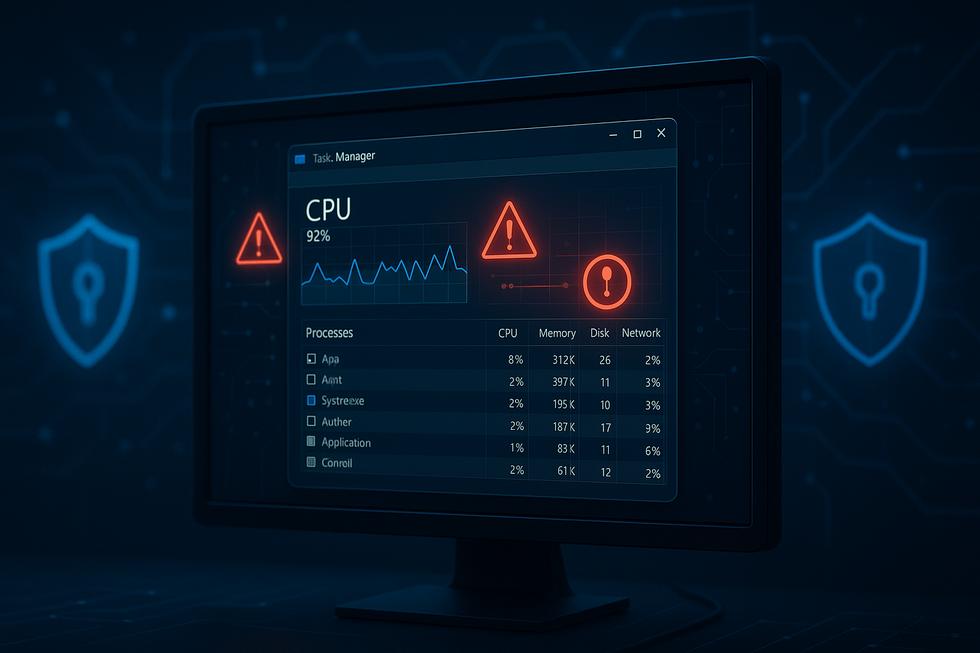
Introduction: Is Your PC Under Attack? Signs Your Computer Might Be Compromised
Your computer might be under attack right now, and you may not even know it. Modern malware has become increasingly sophisticated, often operating in stealth mode while avoiding detection by traditional antivirus programs. Source: Tech Times
The most telling signs of compromise include unexplained high CPU usage—especially when your computer is idle—and noticeably sluggish performance during routine tasks. Task Manager may reveal suspicious processes consuming excessive resources, while your network activity indicator might flash continuously even when you're not browsing or downloading files. Source: Trend Micro
Unusual network activity deserves particular attention, as hidden cryptominers and data-stealing malware frequently communicate with remote servers. You might notice abnormally high data usage, unexpected outbound connections, or your internet connection feeling slower than usual. These symptoms often indicate that malicious software is operating in the background, potentially mining cryptocurrency or exfiltrating sensitive information.
The challenge lies in distinguishing between legitimate system processes and malicious ones. Many modern threats disguise themselves as trusted Windows services or popular applications, making detection difficult without proper investigation techniques. Professional threat detection services can identify these sophisticated attacks, but understanding the warning signs empowers you to take immediate action.
Don't panic if you recognize these symptoms—detection is the first crucial step toward securing your system. The following investigative methods will help you confirm whether your suspicions are justified and guide you through the process of identifying exactly what's compromising your PC's security.
In our experience supporting clients during suspected malware incidents, we’ve found that combining built-in Windows tools with advanced monitoring software dramatically increases detection rates of stealthy threats. Clients we’ve worked with often discover cryptomining malware only after noticing unexplained spikes in CPU usage and internet bandwidth. Real-world results show that taking a methodical approach—carefully cross-referencing unfamiliar processes and network connections—leads to faster and more accurate identification of compromises, helping users clean their systems before major damage occurs.
Step 1: Checking for Suspicious Network Connections Using Built-in Windows Tools
Windows offers two powerful built-in tools to identify potential security threats through network activity monitoring. Start with the Command Prompt's netstat command, which reveals all active connections on your system. Open Command Prompt as an administrator and type netstat -ano to display active connections with their associated Process IDs (PIDs).
Look for connections to unfamiliar IP addresses, especially those using unusual ports or consuming excessive bandwidth. Security experts use netstat to spot suspicious network activity, such as unexpected connections to unknown remote systems that could indicate malware communication.
Next, launch Resource Monitor by typing "resmon" in the Start menu. Navigate to the Network tab to view real-time network activity by process. This visual interface makes it easier to spot processes making unusual outbound connections or transferring large amounts of data without your knowledge.
Focus on processes you don't recognize, especially those connecting to foreign IP addresses or consuming significant bandwidth. Administrators commonly use the netstat -ano sequence to find PIDs, then match them to process names to identify suspicious activities.
If you discover concerning connections, note the IP addresses and process names before proceeding to investigate further. These tools provide the foundation for detecting hidden malware, cryptominers, or unauthorized remote access attempts that traditional antivirus software might miss.
Step 2: Investigating Running Processes - What's Normal vs. What's Not
Open Task Manager by pressing Ctrl+Shift+Esc and navigate to the "Processes" tab. This reveals all active programs consuming your system's resources. Focus on the "CPU" column first—legitimate processes rarely exceed 30% CPU usage consistently unless you're running demanding applications.
Watch for suspicious high CPU usage when your computer appears idle. Cryptomining malware typically maintains 70-100% CPU usage to maximize mining efficiency. Look for unfamiliar process names, especially those with random characters or disguised as legitimate Windows services.
Normal Windows processes include "Windows Security Health Service," "Desktop Window Manager," and "Windows Audio Device Graph Isolation." However, be cautious—malware often mimics these names with slight variations. Legitimate system processes typically run from C:\Windows\System32, while suspicious ones may originate from temporary folders or unusual locations.
Click the "Details" tab for deeper analysis. Right-click any suspicious process and select "Open file location." Malicious processes often hide in AppData, temp directories, or folders with random names. Additionally, check the "Command line" column (after right-clicking column headers and enabling it) to see the full execution path—legitimate processes have clear, recognizable parameters.
For professional-grade threat detection and system monitoring, consider partnering with managed IT security experts who can implement advanced monitoring tools and provide 24/7 threat analysis beyond basic Task Manager capabilities.
Step 3: Using Advanced Tools to Detect Hidden Malware and Cryptominers
Basic antivirus programs often miss sophisticated threats that disguise themselves as legitimate processes. Advanced security tools provide deeper analysis to uncover hidden malware and unauthorized cryptominers operating on your system.
Start with Malwarebytes Anti-Malware, which specifically detects crypto-mining malware that evades traditional antivirus software. Download it from the official website, install with default settings, and run a full system scan. Source: Malwarebytes identifies these threats as "RiskWare.BitCoinMiner" when they operate without user consent.
For network monitoring, use Microsoft TCPView to examine active connections. This free tool displays all network endpoints, showing which processes are communicating externally. Source: Microsoft Sysinternals provides detailed listings including process names and connection states. Look for unfamiliar processes with high data usage or connections to suspicious IP addresses.
Complement these tools with Process Monitor to track file system and registry changes. Cryptominers often modify system files or create persistent registry entries. Run Process Monitor before and after suspected malware activity to identify unauthorized modifications.
For command-line users, execute netstat -b in an elevated Command Prompt to list active connections with associated executables. Cross-reference unknown processes with online databases to verify legitimacy.
Always download security tools from official sources and run them in Safe Mode for isolated scanning. These comprehensive tools reveal threats your standard antivirus might overlook, providing the deep system visibility needed for thorough security assessment.
What to Do Next: Taking Action When You Find Suspicious Activity
Finding suspicious network connections or processes doesn't mean panic—it means taking swift, methodical action. Start by documenting what you've discovered: take screenshots of unusual connections, note suspicious process names, and record any threatening IP addresses you've identified.
Terminate Malicious Processes: Open Task Manager (Ctrl+Shift+Esc) and locate the suspicious process. Right-click the process and select "End Task." If the process immediately restarts, it indicates persistent malware that requires deeper removal tools like Malwarebytes or professional antivirus software.
Block Suspicious Connections: Use Windows Firewall to block threatening IP addresses. Navigate to Windows Defender Firewall > Advanced Settings > Outbound Rules, then create a new rule to block specific IP addresses. For comprehensive network protection, enable Windows Defender's network protection to automatically block connections to malicious domains.
Report Threatening IPs: Report malicious IP addresses to the Federal Trade Commission and consider using threat intelligence platforms that help track cybercriminal infrastructure. This helps protect other users from the same threats.
Clean and Secure: Run a full system scan with updated antivirus software, change all passwords, and monitor your accounts for unauthorized activity. Disconnect from the internet temporarily if you suspect active data theft, then systematically clean your system before reconnecting.
Sources
- Tech Times – Signs of Hacking: How to Know If Your Computer is Compromised
- Trend Micro – How do I know if my computer is infected with malware?
- Malwarebytes – RiskWare.BitCoinMiner: What is it, how to remove, and protect your PC
- Microsoft Sysinternals – TCPView: Networking utility for monitoring TCP and UDP endpoints
Written by the barreras-it.com Editorial Team. Our work is grounded in expert research and practical field insights to help readers act with confidence.