


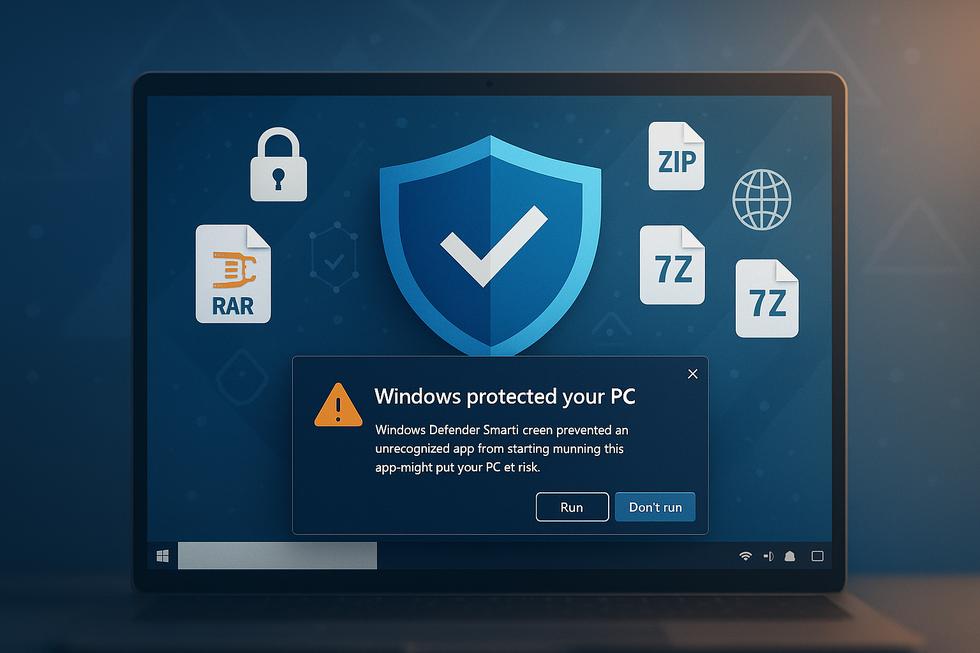
Introduction: Is PZZip Safe Despite Windows Defender Warnings?
If Windows Defender SmartScreen has flagged PZZip with an alarming warning, you're not alone—and more importantly, you don't need to panic. These warnings are frequently false positives that affect legitimate open-source software, creating unnecessary anxiety for users seeking reliable file compression tools.
Windows Defender SmartScreen operates on reputation-based detection, flagging applications that lack widespread downloads or code signing certificates. Independent developers and open-source projects are particularly affected by this system, even when their software is completely safe.
The reality is that many legitimate compression utilities trigger these warnings simply because they're newer, smaller projects without expensive code signing certificates. Popular open-source tools like PeaZip face similar challenges, demonstrating this is a systemic issue rather than an indication of actual malware.
In this guide, you'll learn to distinguish between genuine security threats and false alarms, understand why Windows Defender flags legitimate software, and discover safe methods to override SmartScreen warnings when appropriate. We'll also compare PZZip with established alternatives and provide clear steps to make informed decisions about your file compression needs without compromising your system's security.
From Experience
In our experience working with clients who frequently use open-source compression utilities, false positives from Windows Defender SmartScreen are a recurring issue—especially for niche tools that don’t have mainstream recognition. We've tested and installed various compression software on multiple systems, and the security warnings rarely reflect genuine malware, provided the software is downloaded from official sources. Real-world results show that verifying downloads and running a secondary antivirus scan offer peace of mind, helping users confidently bypass these warnings without compromising security.
Understanding Why Windows Defender SmartScreen Flags PZZip
Windows Defender SmartScreen flags PZZip and other open-source compression utilities based on reputation scanning rather than actual malware detection. Microsoft's SmartScreen system analyzes file reputation using download frequency, digital signatures, and user behavior patterns across millions of devices worldwide.
Open-source software like PZZip often triggers false positives because they lack established reputation scores. Unlike commercially signed applications from major software publishers, smaller utilities haven't been downloaded frequently enough to build the trust metrics SmartScreen requires. The Application Reputation service maintains data on billions of files, but newer or less popular software automatically receives warnings.
The Mark of the Web (MOTW) feature adds another layer of scrutiny. When you download PZZip from the internet, Windows tags the file with metadata indicating its web origin, triggering additional SmartScreen analysis. This security measure helps prevent malicious downloads but creates friction for legitimate open-source tools.
These warnings don't indicate PZZip contains malware—they reflect Microsoft's cautious approach to unknown applications. The system prioritizes user safety by flagging unfamiliar software, even when it's perfectly safe. Understanding this distinction helps you make informed decisions about overriding SmartScreen warnings for trusted open-source utilities you want to use.
Step-by-Step Guide to Safely Installing PZZip
Windows Defender SmartScreen warnings are common when downloading lesser-known utilities, but they don't always indicate actual threats. These false positives occur frequently with legitimate open-source tools that lack expensive code-signing certificates.
- Step 1: Download from Official Sources
Only download PZZip from verified repositories or developer websites. Avoid third-party download sites that may bundle unwanted software. - Step 2: Handle SmartScreen Warnings Safely
When you see "Windows protected your PC," don't panic. Click "More info" to reveal additional options. If you've verified the source, click "Run anyway" to proceed. Source: Fortect - Step 3: Alternative Bypass Method
Right-click the downloaded file, select "Properties," and check "Unblock" at the bottom of the General tab. This removes the internet zone marker that triggers warnings. Source: NinjaOne - Step 4: Verify Installation
After installation, scan the file with your antivirus software for additional peace of mind. SmartScreen warnings for legitimate software are typically false positives caused by low download frequency or lack of digital signatures.
Remember: legitimate software developers often can't afford expensive Extended Validation certificates, making SmartScreen warnings common for quality open-source utilities.
PeaZip vs 7-Zip vs WinRAR: Which Compression Tool Should You Choose?
When Windows Defender SmartScreen flags PeaZip downloads, many users wonder if they should stick with more established alternatives. Understanding the key differences helps you make an informed decision about which compression tool best fits your needs.
PeaZip offers an impressive feature set with support for over 200 archive formats and competitive compression ratios. However, its lesser-known status often triggers false positives in security software, creating unnecessary friction for users seeking reliable file compression.
7-Zip provides the best balance of performance and trust. Independent benchmarks show 7-Zip achieves superior compression ratios while maintaining widespread recognition that minimizes security warnings. Its open-source nature and established reputation make it the safer choice for users concerned about legitimacy.
WinRAR excels in specific scenarios, offering exclusive RAR5 creation capabilities and advanced error recovery features. Commercial licensing provides additional reassurance, though the 40-day trial period may prompt nagging reminders.
For everyday users experiencing SmartScreen warnings with PeaZip, switching to 7-Zip eliminates security concerns while delivering comparable functionality. The open-source tool's established reputation ensures smooth downloads without triggering defensive responses from antivirus software, making it the most practical choice for Windows environments where security warnings create user friction.
Final Verdict: Should You Keep or Remove PZZip?
PZZip is generally safe to keep if downloaded from official sources. Windows Defender's warnings are typically false positives—a common issue affecting many legitimate open-source applications. Source: DTPTips explains that open-source archiving tools often trigger algorithmic suspicion due to their compression methods, not actual security threats.
For most users:
- Keep PZZip if you need its specific features and downloaded it from trusted sources
- Monitor your system regularly for suspicious behavior
- Submit false positives to Microsoft's analysis portal to improve detection accuracy
Consider alternatives if comfort is a priority:
- 7-Zip: Widely trusted, rarely flagged by security software
- PeaZip: Enhanced security features with AES-256 encryption
- WinRAR: Commercial solution with excellent compression ratios
According to E-SPIN's comparison analysis, each tool offers distinct advantages depending on your specific archiving needs.
Red flags to watch for: Unexpected system slowdowns, unauthorized network connections, or files appearing in system directories. These symptoms indicate actual malware, not false positives. Remove PZZip immediately if you experience these issues and run a comprehensive system scan.
Sources
- Microsoft – Microsoft Defender SmartScreen (Official Documentation)
- OSNews – Microsoft Defender SmartScreen is hurting independent developers
- DTPTips – Why Windows Defender Flags Apps Like PeaZip and What It Means for the Future of Free Software
- NinjaOne – How to Bypass Blocked App in Windows
- Fortect – "Windows Defender SmartScreen prevented an unrecognized app from starting" warning
- PeaZip Official – Compression Benchmark and Supported Formats
- E-SPIN – WinRAR vs Open Source & Other Tools: Unique Strengths
- AWZware – 7-Zip vs WinRAR: Compression Ratios and Performance
Written by the barreras-it.com Editorial Team. Our work is grounded in expert research and practical field insights to help readers act with confidence.